
Wholesale Self-Submission
How to let your wholesale retailers add themselves to your store locator using the self-submission feature.
The wholesale self-submission feature lets your retail partners add their own business to your store locator map. Instead of manually collecting addresses and adding locations yourself, retailers submit their location directly from your wholesale portal using their Google Business Profile. This ensures accurate, verified data and saves you time.
How It Works#
You add the Submit Your Location block to your wholesale portal page
Logged-in wholesale customers search for their business using Google
Their location is added to your store locator immediately — no approval step required
Self-submitted locations display "Call for Availability" by default until you assign specific products
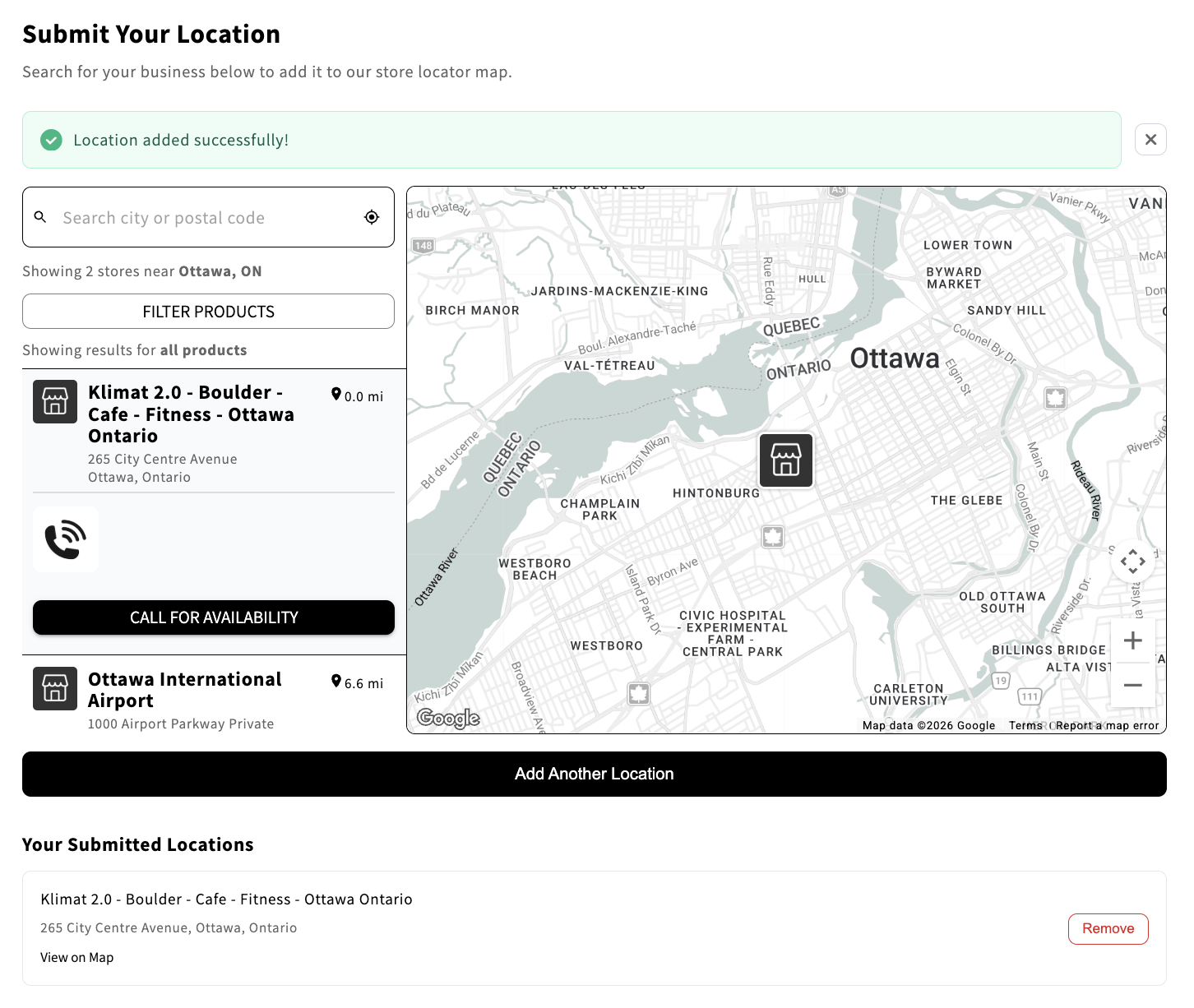
We have a ready-made guide you can share with your retailers: Submit Your Location. It walks them through the full submission process, explains "Call for Availability," and covers common questions.
Setting Up the Theme Block#
To add the submission form to your wholesale portal page:
In your Shopify admin, go to Online Store > Themes > Customize
Navigate to the page where your wholesale customers shop (e.g., your wholesale portal or account page)
Click Add block and select Submit Your Location from the StoreLocators extension
Customize the block settings — you can adjust the title, description, colors, border radius, and spacing
Click Save
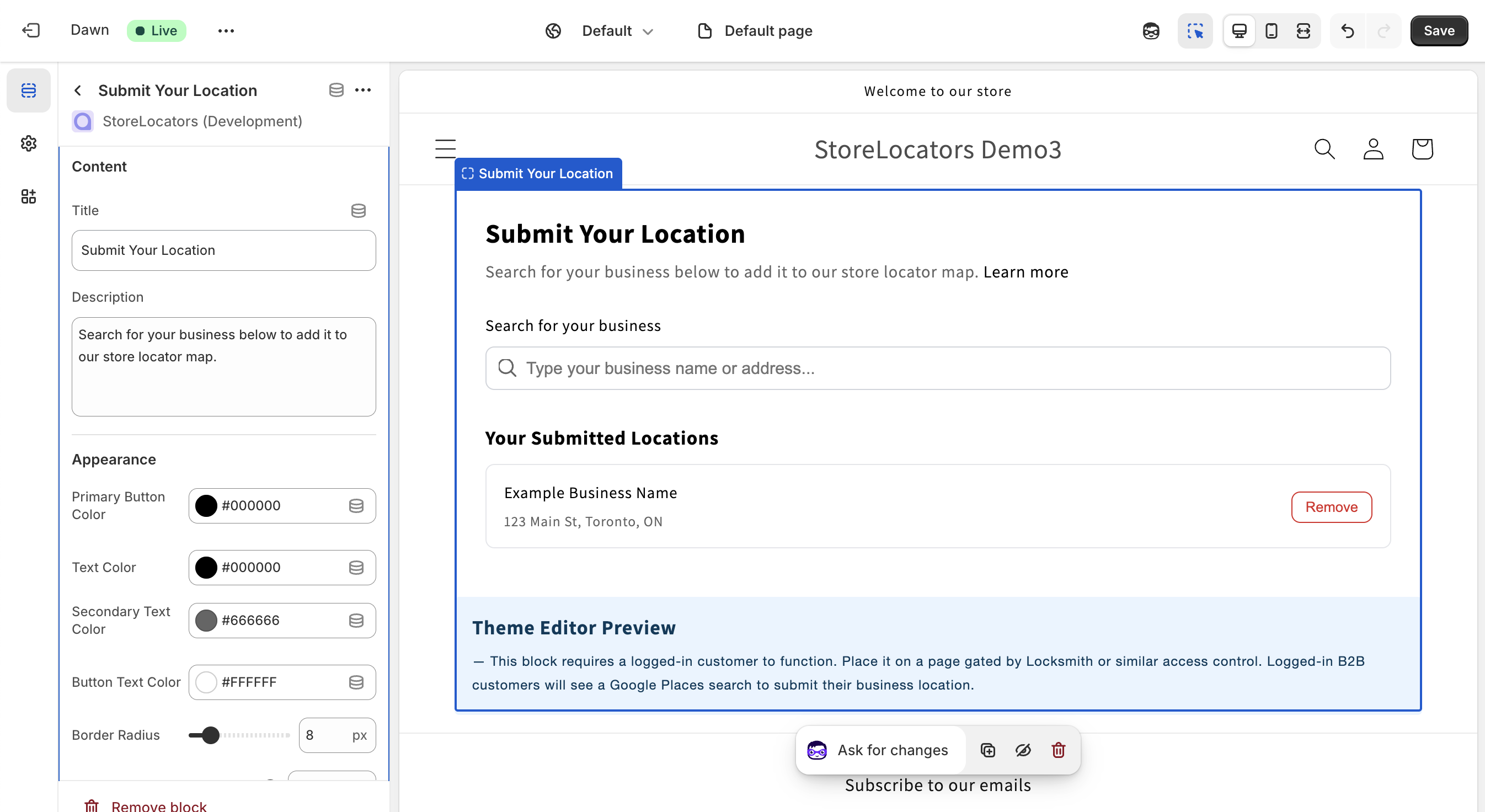
The block will only show the submission form to customers who are logged in. Visitors who are not logged in will not see it.
If you use an access control app like Locksmith to gate your wholesale page, the submission form will only appear for authenticated customers who have access to that page.
Managing Self-Submitted Locations#
Viewing Submissions#
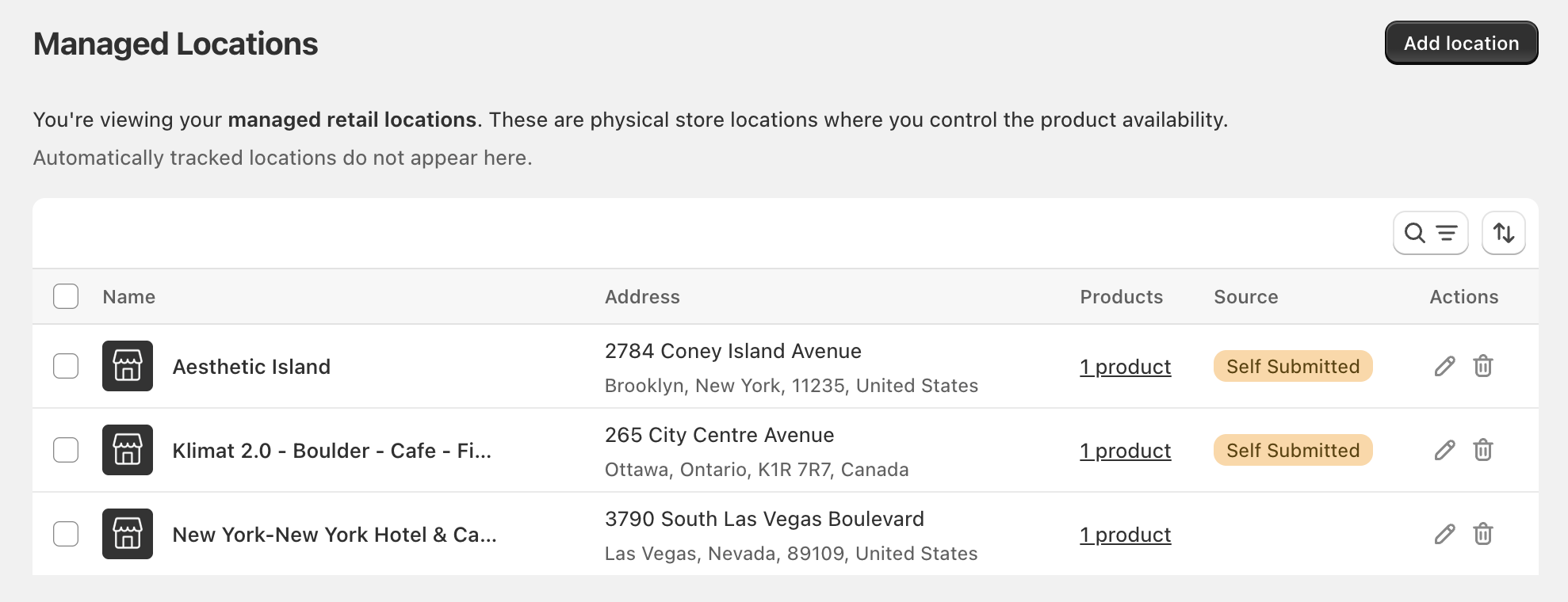
Self-submitted locations appear alongside your other locations on the Locations page in the StoreLocators app:
Self-submitted locations show a yellow Self Submitted badge in the Source column
Hover over the badge to see the submitter's email address
Use the Source filter to show only self-submitted locations
Removing a Self-Submitted Location#
You can remove any self-submitted location from the Locations page, the same way you would remove any other location. Retailers can also remove their own submissions from the storefront.
Retailers can remove their own submissions at any time. If you need to remove a location on your end — for example, if a retailer is no longer authorized — you can do so from the Locations page.
Understanding "Call for Availability"#
Self-submitted locations automatically display "Call for Availability" instead of specific product names. This happens because the retailer does not select products during submission — the system does not know which of your products they carry.
"Call for Availability" tells customers that your products are available at this store and encourages them to visit or call for details. You can assign specific products to the location at any time, the same way you would for any other location on your map.
You do not need to take any action for "Call for Availability" to work. It is applied automatically. If you want a self-submitted location to show specific products, update it from the Locations page.
Requirements for Retailers#
When sharing the submission form with your retail partners, keep in mind:
Logged in — Retailers must be logged in to the page where the submission block is placed
Google Business Profile — Retailers must have a Google Business Profile so the form can pull their verified business name, address, phone number, and hours
No manual entry — Each submission is tied to a Google Business Profile result; retailers cannot type in an address manually
Rate limit — Retailers can submit up to 10 locations per hour
For a complete walkthrough you can share with your retailers, see Submit Your Location.
Frequently Asked Questions#
Do I need to approve submissions before they go live? No. Locations go live immediately when a retailer submits. You can remove any location at any time from the Locations page.
Can I remove a retailer's submission? Yes. You have full control over your store locator and can remove any location from the Locations page.
What data is pulled from Google? Business name, address, phone number, hours, and a directions link — all from the retailer's Google Business Profile.
Is the retailer's email shown publicly on the map? No. The submitter's email is only visible to you in the admin when you hover over the Self Submitted badge.
Can retailers submit multiple locations? Yes, up to 10 per hour. Each location must be a separate Google Business Profile.
What if a retailer submits the wrong business? They can remove it themselves from the submission form and re-submit the correct one. You can also remove it from the Locations page.
Support#
If you have questions or run into any issues with the information provided on this page, reach out to Anthony, our Customer Success Manager, (anthony@storelocators.com) and he will help you get everything configured correctly.